
WorkPlan AdaptiveWork: Schedule Management
What is WorkPlan?
📑 Table of Contents
WorkPlan is the core feature of the AdaptiveWorkPlanview for those seeking organization, control, and real visibility into their projects. With it, you can turn individual tasks into clear, interconnected plans, which facilitates collaboration among teams and helps ensure deadlines are met.
Easy to use yet powerful in its results, WorkPlan is ideal for anyone who wants to plan better and deliver more efficiently.
Context: The Foundation of Management at AdaptiveWork
Within the AdaptiveWork Planview , WorkPlan serves as the backbone of project management. It is here that activities are organized, responsible parties are assigned, and deadlines are made visible.
In addition, the tool allows you to:
- Create dynamic schedules
- Establish dependencies between tasks
- Track progress in real time
- Respond quickly to changes in scope or priorities
By centralizing all information in one place, WorkPlan improves communication between teams, reduces rework, and provides a clear overview of project progress. With its flexibility to accommodate different methodologies, it is essential for teams seeking efficiency, alignment, and value delivery.
Navigating the WorkPlan Structure
Hierarchical view and task grid
When you access WorkPlan, you'll see a structure organized into tasks and milestones. This view is presented in a grid format, with configurable columns that show:
- Task Name
- In charge
- Duration
- Start and end dates
- Status
- Percentage completed
In other words, it's like a roadmap that guides the execution of tasks, ensuring clarity for everyone involved.
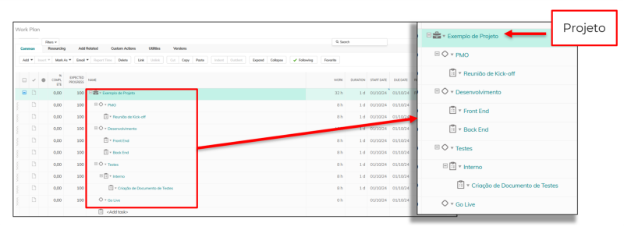
Figure 1 – Diagram of the WorkPlan structure
Project Milestones: Stages (Milestones)
Within WorkPlan, you can define important steps that serve as key milestones for the project. These steps help you track progress in a more visual and structured way.
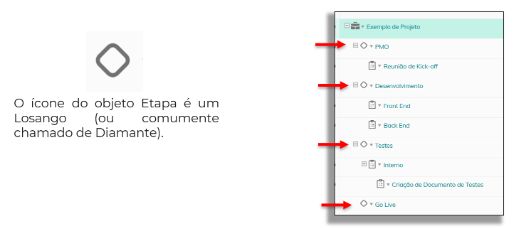
Figure 2 – Diagram of the Steps
Tasks and Their Dependencies
WorkPlan lets you create a detailed schedule, where each task is treated as a work item. You can even set dependencies —such as specifying that one task should not start until another is completed.
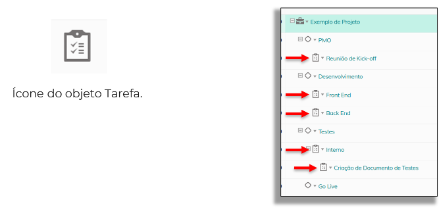
Figure 3 – Representation of Tasks
Dates and Deadlines Tracking
With WorkPlan, you can set start and end dates for all tasks, ensuring a clear and accurate schedule. In addition, the tool can automatically calculate the duration based on the resources and dependencies you define.
Follow-up
Tracking with a Gantt chart
The Gantt chart provides a clear overview of the project's progress. It allows you to track the status of tasks and make adjustments to the schedule whenever necessary.
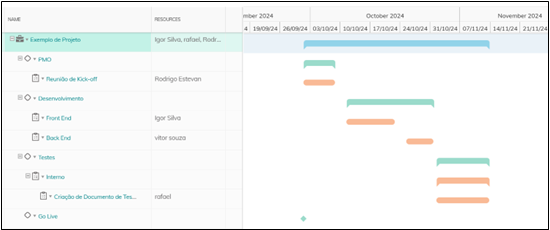
Figure 5 – Illustration of a Gantt chart
Understanding the Critical Path
Why does the critical path matter?
WorkPlan allows you to identify the project's critical path —that is, the sequence of tasks essential to meeting the deadline. This way, you can focus on the areas that truly impact delivery.
Tasks on this path cannot be delayed. The others, however, allow for some flexibility.
Explaining with a practical example
Construction project with the following tasks:
| Task | Duration (days) | Addiction |
|---|---|---|
| A – Lay the Groundwork | 3 | — |
| B – Foundation | 5 | After A |
| C – Structure | 7 | After B |
| D – Painting | 2 | After C |
| E – Plant gardens | 4 | After A (parallel) |
Critical path: A → B → C → D (total of 17 days)
Task E can be done in parallel and does not affect the deadline, as long as it is completed by the 17th. However, a delay in Task C impacts the entire project.Â
Baseline and Version Monitoring
Baseline
The baseline is a copy of the original schedule. It serves as a reference for comparing the plan with actual execution, helping to identify deviations from scheduled dates.
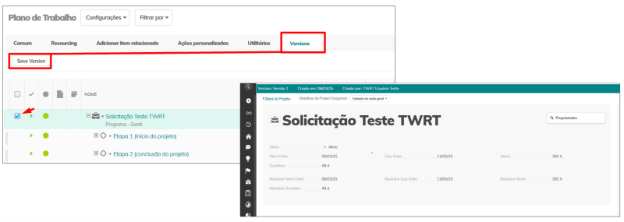
Figure 8 – Diagram showing the creation of project versions
Resource Allocation
You can assign people and other resources (such as materials or equipment) to tasks. This helps you effectively plan who will do what, ensuring that resources are available at the right time:
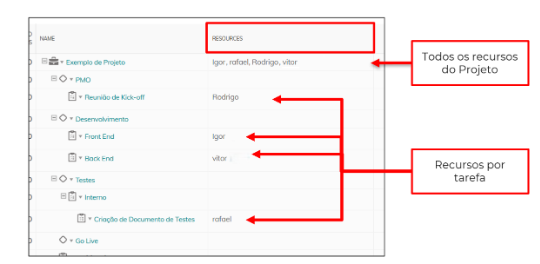
Figure 9 – Illustration of resource assignment in tasks
Business Case: Why Is WorkPlan Strategic?
In a competitive market, clearly planning and tracking projects is essential. WorkPlan provides an environment where goals become achievable plans.
Among its main benefits:
- Visibility of Tasks and Deadlines
- Reduction in errors and rework
- Faster decision-making
- Risk Anticipation
Companies that use WorkPlan deliver with greater precision, improve productivity, and increase customer satisfaction. In short, investing in this feature means investing in alignment, control, and real results.Â
Conclusion
At the end of the day, what drives a project isn't just tasks and deadlines. It's the team's confidence in the path they're taking.
AdaptiveWork's WorkPlan isn't just a tool—it's an invisible partner that brings order to chaos and anticipates challenges, freeing up the team to deliver real value.
More than just managing, it’s about building a connected and collaborative journey, where each step brings your team closer to achieving real results.


